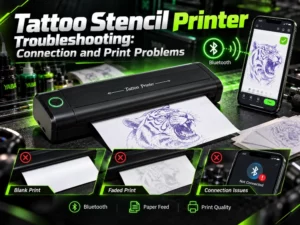
Four systems have to work before a stencil printer prints: the Bluetooth link, the paper in the feed, the heat at the print head, and the artwork file sent to it. When one of them fails, it does not fail generically. The printer goes quiet, or returns a blank sheet, or fades the image, or garbles it — four symptoms from four different faults, and that difference is what makes each fault isolable before anything is repaired.
Work through them in the order below — most frequent, least invasive first — changing one variable at a time. A fault that vanishes after three simultaneous changes has not been diagnosed. It has been postponed, and it will return mid-session.
The App Cannot Find or Connect to the Printer
Pair Inside the App, Not in the Phone’s Bluetooth List
App-driven stencil printers hold their connection inside the printing application, which performs its own device scan and maintains the link for the session. Pairing the printer in the phone’s system Bluetooth settings first creates the most misleading fault in this category: the system list reports the printer as connected while the application cannot detect it at all. The system pairing occupies the printer without giving the application a usable path to it.
Recovery begins by undoing that pairing. The printer comes off the system list; the application is closed completely, not minimised; the printer restarts and begins advertising again, at which point the connection is made from the application’s own device search, phone close to printer. In a studio full of competing phones, tablets and speakers, distance alone defeats marginal attempts, so proximity during the first link is not a courtesy — it removes a variable.
Shared studio printers add a wrinkle of their own. The unit keeps its most recent connection, and while a tablet still holds that link, a phone scanning for the printer is refused — silently, with no indication that the refusal is an occupancy problem rather than a fault. The previous device has to release the printer inside its application before the new one scans. Studios that skip this step routinely diagnose a healthy printer as dead.
Give the App Its Permissions and a Clear Radio Path
On Android, Bluetooth device scanning is tied to the location permission — labelled “Nearby devices” on recent versions. An application denied that permission cannot see the printer and typically reports only that no device was found: the printer is blamed for a restriction imposed by the phone. A phone replacement, system update or application reinstall can silently reset the permission. On iOS, the equivalent control is the application’s Bluetooth access in the privacy settings.
Application updates can also invalidate stored pairings, so a printer that connected without incident for months may require a fresh pairing after an overnight update — a configuration change, not a hardware failure. A ten-second test separates the two: if the printer connects immediately to a second phone, its radio and firmware are functioning, and the fault sits in the first phone’s settings.
Re-Pair From Zero, or Print by Cable When the Chair Is Waiting
Where a partial pairing survives the first cleanup, rebuild the connection completely: remove the printer in the application and in the system list, restart both phone and printer to clear any stalled Bluetooth state, and pair once, inside the application.
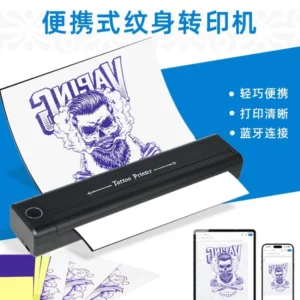
Connection faults do not need to interrupt a booked session. Our P-19 Bluetooth stencil printer prints over Bluetooth 4.2 and, when a wireless link is unavailable, directly from a computer over its Type-C cable on Windows, Mac OS and Linux. Built around an in-house developed print head at 290 × 57 × 40 mm, its application supports rotation, cropping, splitting and on-body placement preview. Print by cable, complete the session, and resolve the pairing afterwards.
The Sheet Comes Out Blank or Stops Halfway Down
Paper a Thermal Head Cannot Print On
Blank output from a printer that feeds smoothly and completes its cycle is, in the large majority of cases, a paper fault. The head produces an image by heating the dye layer built into thermal transfer paper; freehand stencil paper, made for pen tracing, contains no heat-reactive layer at all. The printer performs correctly. The sheet cannot respond. No setting corrects a missing layer.
One sheet settles it. Load paper confirmed as thermal and print the same design. Ours — thermal transfer paper — is a purple dye paper in 8.5 × 11 in sheets, compatible with all thermal printers and all stencil transfer creams, but the brand is beside the point here. The category is the diagnosis: thermal paper, not a freehand or inkjet sheet pulled from the wrong drawer during a restock.
Correct paper can still be loaded incorrectly. A thermal sheet is a layered construction — master sheet, protective tissue, dye layer, yellow backing — and leaving the tissue in place forms the image on the wrong layer, or so faintly that the print head takes the blame. Tissue and backing come off before loading. A significant share of reported fading ends here.
A Crooked Feed Wears a Print Problem’s Clothes
Paper entering the feed at a slight angle rarely jams on the spot. It drifts instead. It wrinkles against the feed path, travels a few centimetres further, then stalls partway through the design — and the half-finished sheet left behind looks remarkably like an electronic failure. The correction takes seconds: reload square against the guides, and close the lid until it latches, not until it looks closed. An unlatched lid holds the print head fractionally above the paper, and the pale, uneven output that follows sends users to the darkness settings for a fault that lives in the lid.
Paper format must also match the machine’s feed design. The P-19 takes A4 sheets — 8.27 × 11.6 in — and 14-inch stencil paper. The TP31 pocket stencil printer occupies the opposite end of the range: 450 g, built for 80 mm rolls, printing at up to 20 mm per second, with standby beyond 72 hours and up to 70 metres of output from one charge. Feed geometry follows format. Sheet stock forced into a roll-fed machine, or roll stock trimmed down for a sheet-fed one, misfeeds however carefully it is loaded, because the path it travels was designed for something else.
Lines Print Faded, Broken or Blotchy
Darkness Is Heat, and Heat Sags With the Battery
Print darkness is heat. Each element of the head delivers energy into the dye layer, and on a battery-powered printer that energy comes out of the charge — a depleted battery cannot hold head temperature through a long, dense design. The pattern gives it away: early prints solid, fading that arrives later, concentrated in the heaviest blackwork, worsening as the charge falls. A fade tracking the battery gauge is a power condition, not a failing head. Charge fully, reprint the identical design, and only then touch a setting.
Only with a full charge established does the darkness setting mean anything. Move it one step at a time, test-printing between steps. Too much darkness damages fine work as surely as too little: at the P-19’s 203 DPI an overheated head merges adjacent dots, and fine lines emerge thickened, fused, unusable for the work they were drawn for. The correct setting is simply the lowest that yields a solid line on the design in hand — bold traditional and fine-line work legitimately sit at different points on the same scale.
A Dirty Head Prints the Same Pale Bands Every Time
Carbon leaves every sheet on the print head, and studio dust settles on top of it. The deposit insulates sections of the head; insulated sections stop heating the dye adequately. What identifies this fault is its indifference to the artwork — the pale band occupies the same position on every design, bold or fine, large or small. A defect that ignores the image and stays fixed at one point along the head is contamination, and contamination is the cheapest of these faults to repair.
The remedy is brief: power off, let the head cool, wipe the head line and feed roller with a soft, lint-free pad dampened with isopropyl alcohol, and pass one plain sheet through to clear loosened residue. Printers condemned as failed on banded, fading output routinely return to full density after this single cleaning.
The Design File Can Be Too Grey to Survive Printing
A thermal head prints dots. It does not reproduce continuous grey. Photographs and shaded sketches force it to discard most of their tonal information, and the stencil emerges weak and fragmented from a correctly configured machine. File preparation is where this fault is corrected: clean line art, solid black lines on white, shading removed or redrawn as line work. The P-19 application’s crop and split functions support that preparation on large work — designs up to A4 width, or a 14-inch sheet, in sections — but no function reconstructs lines the source file never contained.
One test settles the question. Print a deliberately simple, bold design: dark, complete output clears printer, paper and settings together, and convicts the artwork. If the bold test also prints pale, the order of suspicion is charge state, head cleanliness, darkness setting. The standard loading and first-use procedure is set out in our stencil printer setup guide; the bold test is the diagnostic for when that procedure stops producing its usual result.
It Jams, Pauses Mid-Run or Dies Between Sheets
Long Runs Need Cooling Pauses, Not Force
Heat accumulates. Sustained printing of large sheets warms the head, the motor and the battery together, and portable printers defend themselves against the load: a pause mid-run, a next sheet declined until temperatures settle. Forcing restarts does not shorten the wait. Heavy runs belong in batches, with short pauses between them — the scheduling that keeps a portable unit inside its duty cycle through convention days and long back-piece sessions.
A jam after a visible wrinkle is a different matter. Withdraw the sheet along the feed direction — never tear it backwards — and inspect the path for fragments. One torn corner left inside obstructs every following sheet and manufactures a series of jams that look convincingly unrelated.
The Test That Separates a Tired Battery From a Dead Printer
A printer that stops between sheets and recovers on the charger is showing the end of its charge, and the longer trend carries the real information. Our portable Bluetooth stencil printer weighs 1.3 pounds; its 2000mAh battery is rated for approximately 200 pages per full charge across Android, iOS, Windows, MacOS and ChromeOS devices. A unit that once delivered output of that order and now fades after a handful of sheets on a full charge has a worn battery. No setting restores lost capacity, and no cleaning recovers it.
A hardware fault earns its conclusion only when four witnesses agree: battery fully charged, head cleaned, paper confirmed thermal, bold test file used — and the printer still failing, on a second phone and over a cable as well as over Bluetooth. Short of that agreement, the fault is in the setup, where it can be found and fixed.
Conclusion
Read in sequence, the evidence separates the four fault families without overlap: the printer paired in the wrong list, the blank sheet that was never thermal paper, the band repeating in one position across unrelated designs, the fade that follows the battery gauge. None of these requires a part, a setting sweep or a replacement printer — each requires the correct ten minutes spent in the correct place. That is also why our own specifications at Yaba are published in full: dual connection paths, print resolution, battery capacity and charging limits are the data a diagnosis starts from.
If the four-part test does convict the machine, record the model, the paper in use and the checks completed before contacting us. A diagnosis that starts from your evidence resolves faster than one that starts again.
FAQs
Q1: Why does my phone list the printer as connected while the app cannot find it?
A1: It was paired in the phone’s system Bluetooth list, which holds the connection where the printing application cannot use it. Remove that pairing, restart the printer, and connect from inside the application’s own device search — the place where app-driven printers keep their link.
Q2: Can hand-tracing stencil paper work in a thermal stencil printer?
A2: It feeds through the machine but cannot produce an image: freehand paper contains no heat-reactive dye layer, so the print head has nothing to activate. Blank output from a smoothly running printer should be investigated as a paper fault first — print the identical design on confirmed thermal transfer paper.
Q3: My prints start dark in the morning and fade by afternoon. What is wearing out?
A3: Usually nothing is wearing out. The charge is falling, dense designs draw the most head energy, and heavy sheets fade first; fully charge the printer and reprint the same file to confirm. A worn battery is indicated only when fading begins within a few sheets of a full charge.